SPSS - FREQUENTLY USED TOOLS AND VIEWERS
September 15, 2025
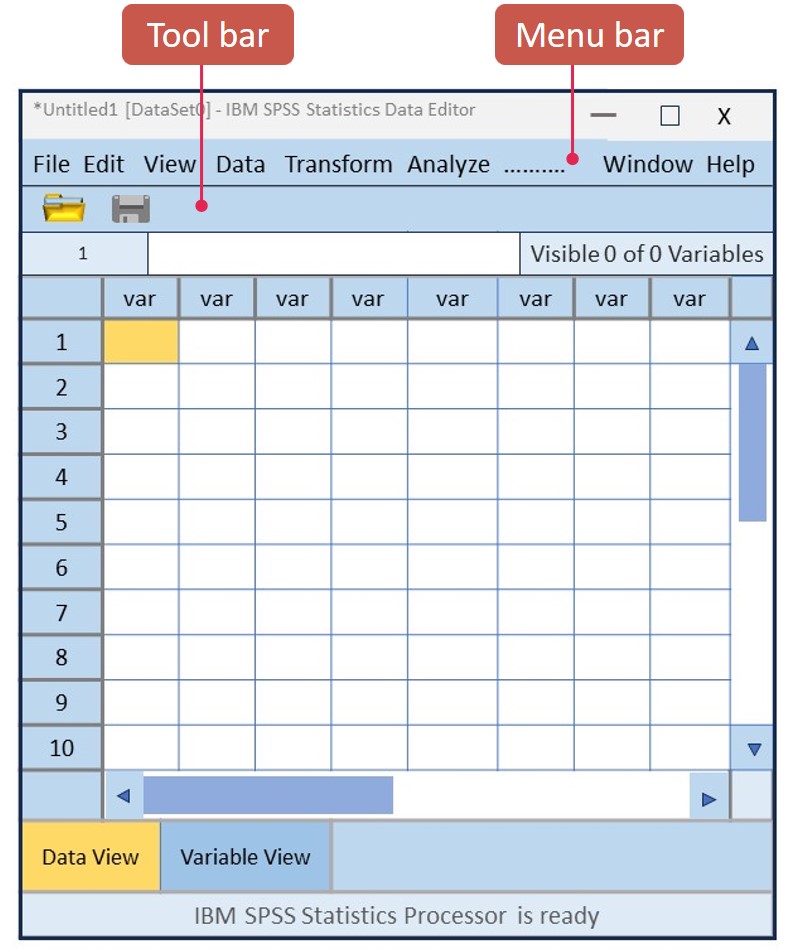
The SPSS--“Statistical Package for the Social Sciences” is a set of programs for exploring, editing, analyzing, and presenting data. The data editor Window appears when you start SPSS.
The main menu bar and the toolbar are located at the top of the data editor. The data editor has two views. First, you can type variables into the variable viewer’s empty cells and then you can type data into the data viewer’s empty cells. You may get data from a file without typing the data. Some icons are active (colored) and others are “grayed” (not active—not currently available). For example, the “save a file” icon is grayed because there is no data in the data editor.
You will notice that some icons are identical to those in the output viewer that holds the results after a statistical procedure is run. These icons do the same thing. SPSS provides the toolbar for rapid and easy access to some common tasks.
The following table summarizes some tools that are used frequently. These icons can be seen on the editor and the output viewer.
The toolbar icons in the IBM® SPSS® Statistics.
| Tool Icon | Meaning | Window |
|---|---|---|
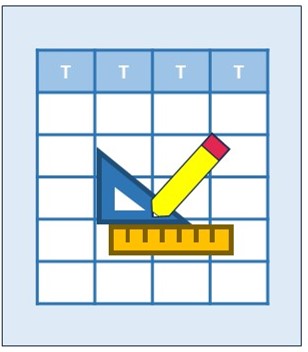 |
Insert a new variable into the data editor. (Possible in either Data View or Variable View). | Data Editor |
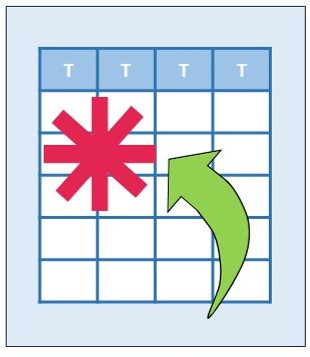 |
Insert the subject or case into the Data View. Depends on the number of rows selected. If 1 row is selected, then 1 empty row will be added. | Data Editor |
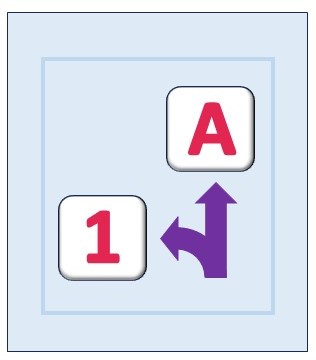 |
Switch between texts and the numbers (Data View). Example: Gender variable’s values can be assigned 0 or 1, Female = 0, Male = 1 | Data Editor |
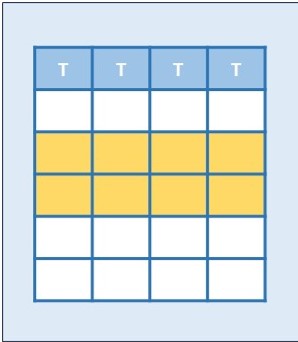 |
Select cases in the Data View (All or Filtered). Each row represents a subject or case. Each case is identified by the number on the Data Viewer’s left. | Data Editor |
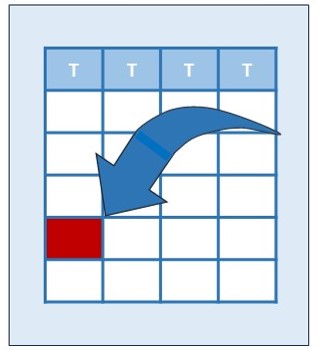 |
Go to the case (a row with data) number or to your variable on the Data Viewer of the data editor. The default option is “Go to case number”. | Data Editor |
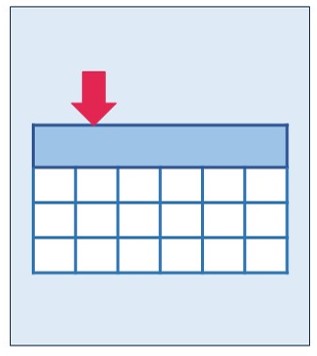 |
Go to your variable or to the case (a row with data) number on the Data Viewer of the data editor. The default option is “Go to variable”. | Data Editor |
 |
Go to the Data Viewer of the data editor from the Output Viewer. | Output Viewer |
 |
Select the last output produced. | Output Viewer |

Home | Contact: info@gazersdigest.com
©2020-2026 Gazer’s Digest is an information-sharing platform using reliable sources to support the human-written articles. Gazer’s Digest includes topics, thought to be useful for the readers, and the contents may be related to investments. Gazer’s Digest is also a digital learning tool that helps you understand complex concepts, stay updated on trends, and sustainable solutions.