DATA CLASSIFICATION WITH SPSS VISUAL BINNING & FREQUENCIES
October 01, 2025
Before you start classifying the data, familiarize yourself with the methods. A cutpoint simply cuts the data into two separate parts (equal-width intervals). There is a bin on either side of the cutpoint. Each bin has two endpoints (limits)—the lower endpoint and the upper endpoint. The values (observations) are classified into classes (bins) by the endpoint. The cutpoint and the limits are marked on the following histogram.
The above histogram shows two bins with one cutpoint. LL - Lower Limit, UL - Upper Limit.
Prepare a frequency table with a suitable class interval (bin size) for the following values:
10, 11, 15, 19, 20, 15, 21, 22, 28, 21
The minimum value is 10, and the maximum value is 28. The difference between the two values is 28 - 10 = 18. If you choose a class interval of 9, the obvious cut points are 10 (minimum value)—separates: Below 10 (bin1) & 10 - 19 (bin2), 19—separates: 10 - 19 (bin2) & Above 19 (bin3). Data can be classified by using either the inclusive method or the exclusive method.
| Cutpoints | 10 | 19 |
|---|
Make cutpoints using the Visual Binning
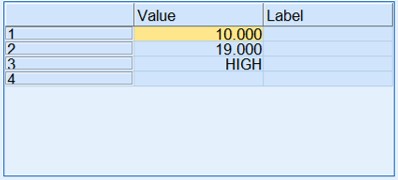
Let's make Cutpoints with the SPSS Make Cutpoints... button.
Before clicking the button, the following steps have to be completed.
- Input or import data into the SPSS Data Editor
- Open SPSS Visual Binning (Transform→Visual Binning)
- Select the variable to bin and then continue
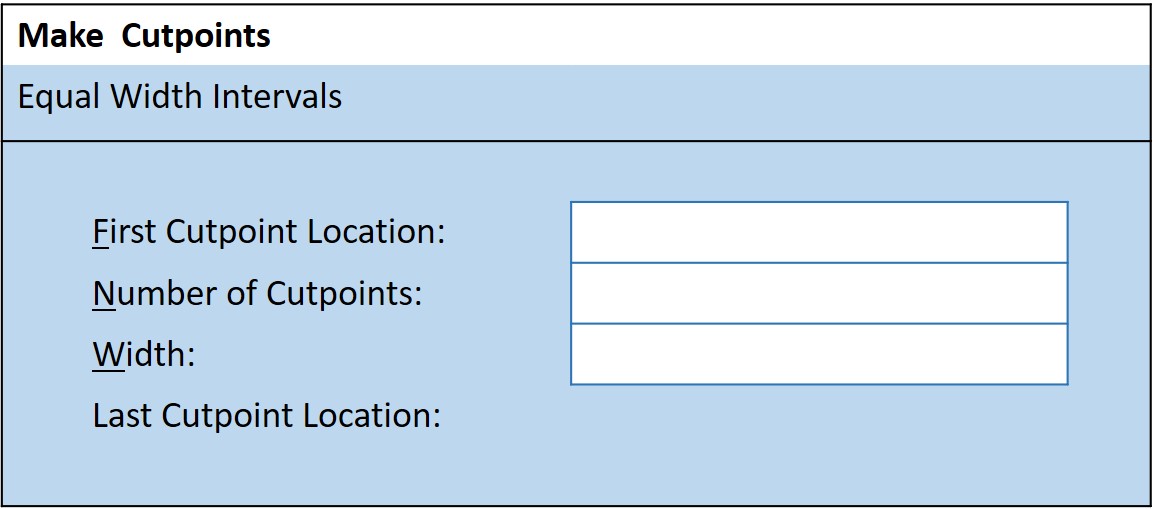
Make cutpoints screen needs at least two of the following inputs for creating equal-width intervals. The last cutpoint value is calculated by the SPSS with the given inputs.
Make the labels using the Visual Binning
Let's make the labels with the SPSS Make Labels button on "Visual Binning". One way to do this is to use the inclusive method. Also, labels can be made with the exclusive method.
"Upper end points included": This method keeps the value, which is equal to a bin's upper end point, in the bin. Therefore, if a value is equivalent to a bin's lower end point, it will be in another bin. 10 is equal to the upper end point of the bin 1. It will be kept in the first class (bin 1). 10 is not in bin 2, but 19 is in the bin 2. The bin 2's label indicates this as "11 - 19".
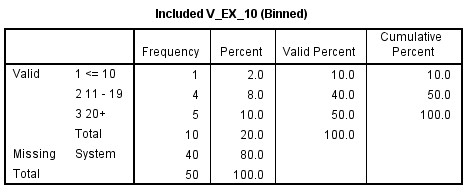
The inclusive method is illustrated by the table, the histogram, and the labels created by the "Make Labels" below.
| Cutpoint | Bin | Label |
|---|---|---|
| 10 | 1 | 02.00 - 10.00 |
| 19 | 2 | 11.00 - 19.00 |
| 3 | 20.00 - 28.00 |
A List of Labels
As shown below, 10 is in bin 1, 19 is in bin 2, and 28 is in bin 3.


The above histogram shows the distribution of upper endpoint values among the bins.
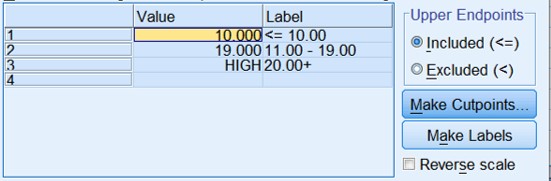
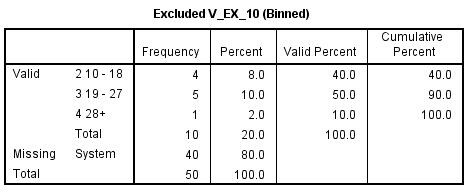
"Upper endpoints excluded" option: This method puts the value, which is equal to the upper endpoint of a bin, in the next bin. 19 is included in the 3rd class (bin 3), and 28 is in the 4th bin.
| Bin | Observations are classified by Exclusive method |
|---|---|
| 2 | 10 and less than 19 |
| 3 | 19 and less than 28 |
| 4 | 28 and Less than 37 |
The exclusive method is illustrated by the table, the histogram, and the labels created by the "Make Labels" below.
| Cutpoint | Bin | Label |
|---|---|---|
| 10 | 1 | < 10.00 |
| 19 | 2 | 10.00 - 18.00 |
| 28 | 3 | 19.00 - 27.00 |
| HIGH | 4 | 28.00+ |
The above table shows the labels created with three cutpoints by the SPSS.
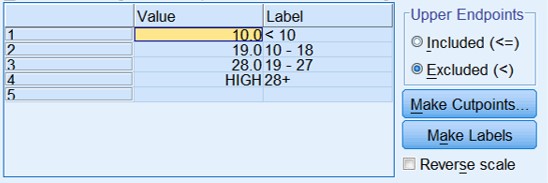
Bins and Labels on the screen can be edited. Bin 1 is empty; therefore, the values of bin 2, bin 3, and bin 4 are shown.
| Cutpoint | Bin | Label |
|---|---|---|
| 2 | 10.00 - 19.00 | |
| 19 | 3 | 19.00 - 28.00 |
| 28 | 4 | Above 28.00 |
A List of edited Labels
The above histogram shows the distribution of upper endpoint values among the bins.
Display frequency table
- Open frequencies (Descriptive Statistics→Frequencies)
- Select variables that were created by the "visual binning"
- Select display frequency tables
- Click OK

Home | Contact: info@gazersdigest.com
©2020-2026 Gazer’s Digest is an information-sharing platform using reliable sources to support the human-written articles. Gazer’s Digest includes topics, thought to be useful for the readers, and the contents may be related to investments. Gazer’s Digest is also a digital learning tool that helps you understand complex concepts, stay updated on trends, and sustainable solutions.