COMPUTE AGE WITH DATE AND TIME WIZARD.
January 30, 2026
In this exercise, we will simply use the SPSS wizards to compute the age and create the bar chart. “Date and Time Wizard” will calculate the age, and then we create the chart with the “Chart builder”.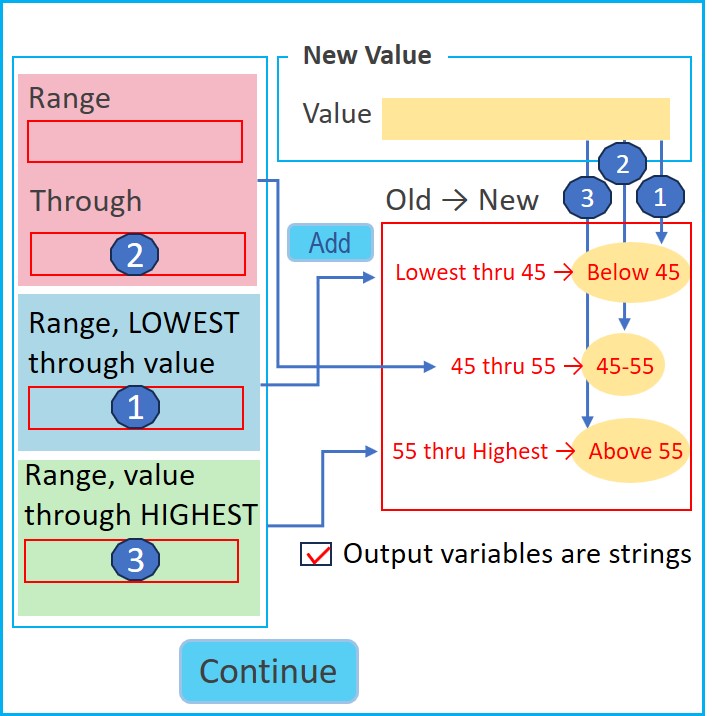
This is a hypothetical data file. Each case in the data file represents a separate employee. Create a new variable named "evalDate" (type: Date, format: dd.mm.yyyy), meaning the date of evaluation. The evaluation date is 31.12.2025. Use the date of birth (DOB) variable to compute the age of the employees in years. Create ageGroup variable and group all the employees into the three age groups (“Below-45”, “45-55”, and “Above-55”), to create a clustered bar chart.
| Case | Gender | Job Category | Salary | DOB |
|---|---|---|---|---|
| 1 | Female | Clerical | $26,000 | 23.02.1970 |
| 2 | Female | Manager | $54,000 | 07.04.1994 |
| 3 | Female | Clerical | $31,500 | 14.03.1962 |
| 4 | Male | Clerical | $26,700 | 18.01.1994 |
| 5 | Female | Manager | $43,900 | 07.01.1981 |
| 6 | Male | Clerical | $26,700 | 20.05.1961 |
| 7 | Male | Manager | $69,200 | 15.04.1980 |
| 8 | Female | Clerical | $17,100 | 27.01.1968 |
| 9 | Female | Clerical | $24,000 | 13.01.1990 |
| 10 | Female | Clerical | $27,400 | 02.07.1969 |
| 11 | Female | Clerical | $19,800 | 12.04.1964 |
| 12 | Male | Manager | $40,200 | 19.10.1995 |
| 13 | Female | Manager | $52,100 | 05.02.1978 |
| 14 | Male | Clerical | $33,900 | 29.03.1993 |
| 15 | Female | Clerical | $37,000 | 22.07.1995 |
| 16 | Male | Manager | $47,200 | 11.08.1994 |
| 17 | Female | Clerical | $26,100 | 17.04.2000 |
| 18 | Male | Manager | $59,400 | 30.10.1975 |
| 19 | Female | Clerical | $36,600 | 23.11.1993 |
| 20 | Male | Clerical | $30,100 | 18.09.1989 |
| 21 | Female | Clerical | $24,400 | 16.06.1999 |
| 22 | Female | Clerical | $20,800 | 20.12.1972 |
| 23 | Male | Manager | $86,200 | 11.03.1989 |
| 24 | Male | Clerical | $26,200 | 02.09.1994 |
Create the variables (Gender, JobCat, Salary, and DOB) directly in the variable view, and input the sample data into the data view.
| Name | Type | Values | Missing | Measure | |
|---|---|---|---|---|---|
| 1 | Gender | Numeric | None | None | Nominal |
| 2 | JobCat | Numeric | None | None | Nominal |
| 3 | Salary | Numeric | None | None | Scale |
| 4 | DOB | Date | None | None | Scale |
Value-labels: Gender
- 1 = Male
- 2 = Female
Value-labels: JobCat
- 1 = Clerical
- 2 = Manager
Variable: Date
- Format:dd.mm.yyy
Create the "evaluation date" variable (evalDate) directly in the variable view.
- Name: evalDate
- Type: Date
- Format: dd.mm.yyyy
- OK
Input data into the evalDate variable.
- Input: 31.12.2025, into the first cell of the evalDate
- Copy this date into all the other cells:
- Right-click on the first cell, click Copy
- Select all other cells (click on the second cell and drag the mouse pointer down to the 27th cell of the column)
- Right-click on the selection and Paste
Compute Employee age
Compute Employee age as at 31.12.2025.
- Transform → "Date and Time Wizard" → "Calculate with dates and times"
- Next → "Calculate the number of time units between two dates"
- Move evalDate to Date 1
- Move dob to minus_Date 2
- Unit: Years
- Truncate to integer
- Next → Result Variable: age, Variable Label: Employee age, Execution: Create the variable now → Finish
Create the AGE groups
- Transform → Recode into different variables
- Move age into: ,“Numeric variable → Output variable” box
- Output variable Name: ageGroup, Label: Age group → Change
- Categorize values into groups:
- Select "Output variables are strings"
- "Range, LOWEST through value": 45, → “New Value”: "Below 45" → "Old→New": Add
- Range: 45, through: 55 → “New Value”: "45-55" → "Old→New": Add
- "Range, value through HIGHEST": 55 → “New Value”: "Above 55" "Old→New": Add
- Continue, OK
Old and New values…
Some variables belonging to the first 4 cases that appear on the data view are given in the table below.
| Case | DOB | dateEval | age | ageGroup |
|---|---|---|---|---|
| 1 | 23.02.1970 | 31.12.2025 | 55 | 45-55 |
| 2 | 07.04.1994 | 31.12.2025 | 31 | Below 45 |
| 3 | 14.03.1962 | 31.12.2025 | 63 | Above 55 |
| 4 | 18.01.1994 | 31.12.2025 | 31 | Below 45 |
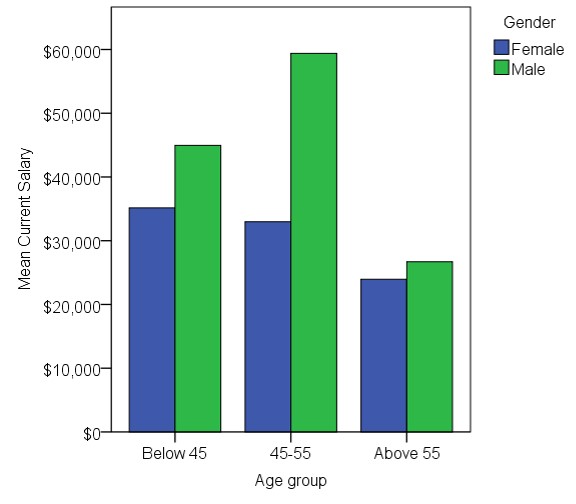
Create a clustered bar chart.
- Graps → Chart builder → Gallery → Clustered Bar
- Move ageGroup into the "X-Axis" box
- Move gender into the "Cluster on X" box
- Move salary into the "Y-Axis" box
- Element Properties... → Edit Properties of:Bar1, Statistic:Mean → Apply, Close

Home | Contact: info@gazersdigest.com
©2020-2026 Gazer’s Digest is an information-sharing platform using reliable sources to support the human-written articles. Gazer’s Digest includes topics, thought to be useful for the readers, and the contents may be related to investments. Gazer’s Digest is also a digital learning tool that helps you understand complex concepts, stay updated on trends, and sustainable solutions.